Official WOOPKER Support · Product Manuals & Technical Assistance

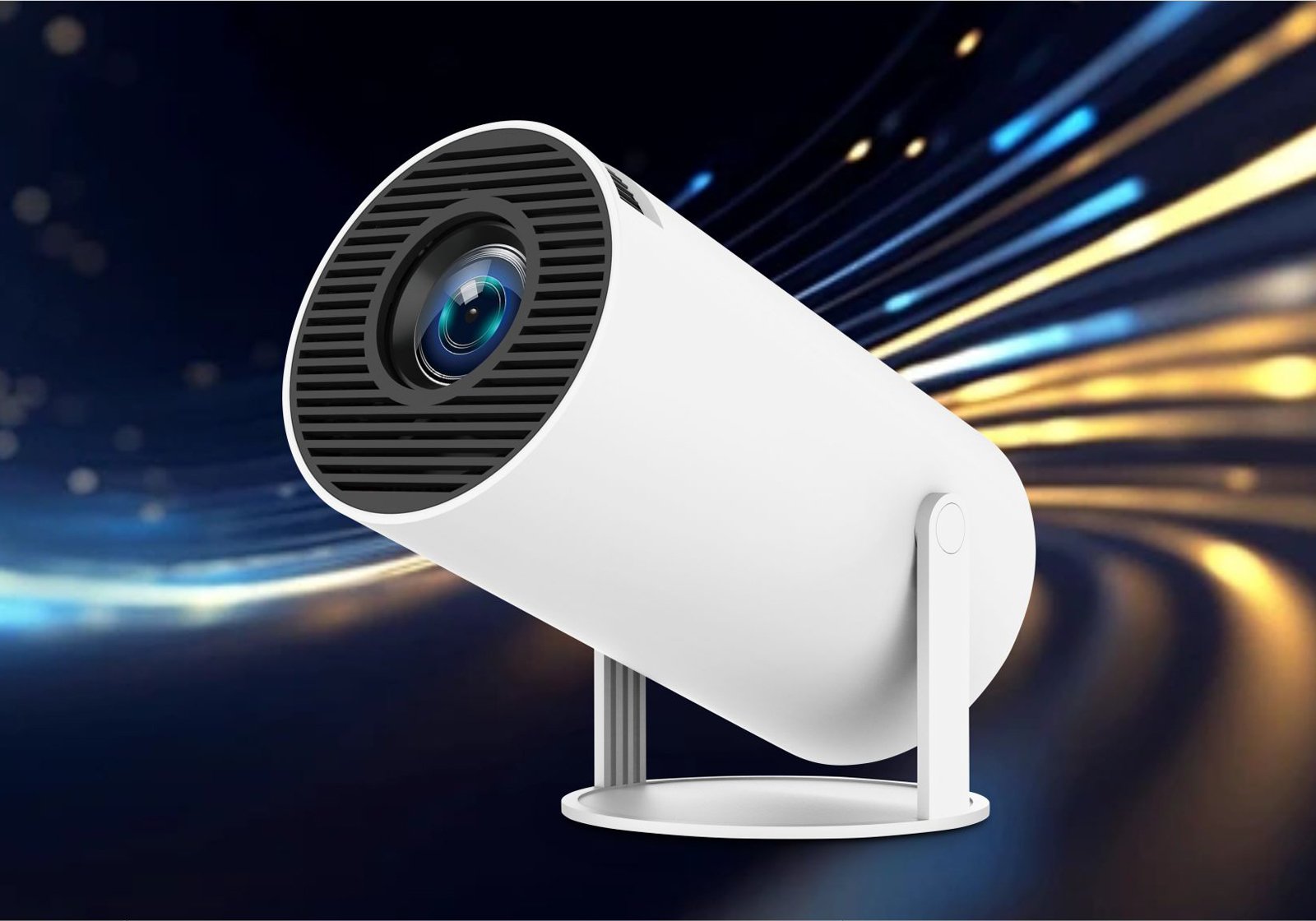
HY300Pro+ iOS Screen Mirroring Fix: USB Firmware Update
Recent iOS updates have caused AirPlay screen mirroring problems for some projector users: the connection is accepted, audio may continue, but the projected image freezes, turns into a static screen, or never appears. We have seen the same reports from HY300Pro+ users and acted on them. WOOPKER engineers reproduced the issue and released a USB local firmware update that restores normal screen mirroring on affected units.
HY300Pro+ Screen Mirroring Issue After an iOS Update
Across Apple community discussions and projector forums, users have described several versions of the same problem: AirPlay appears to connect successfully, but the projector does not display a usable second screen. Some users hear audio while the picture remains frozen; others see only a static image. Apple support guidance also notes that compatibility issues can appear after a system update, so checking the software and network environment is a sensible first step.
For HY300Pro+, this is no longer an open issue. The problem has been isolated and addressed through an official local firmware update. You do not need to keep changing Wi-Fi settings, repeat the connection, or wait for a future app update.
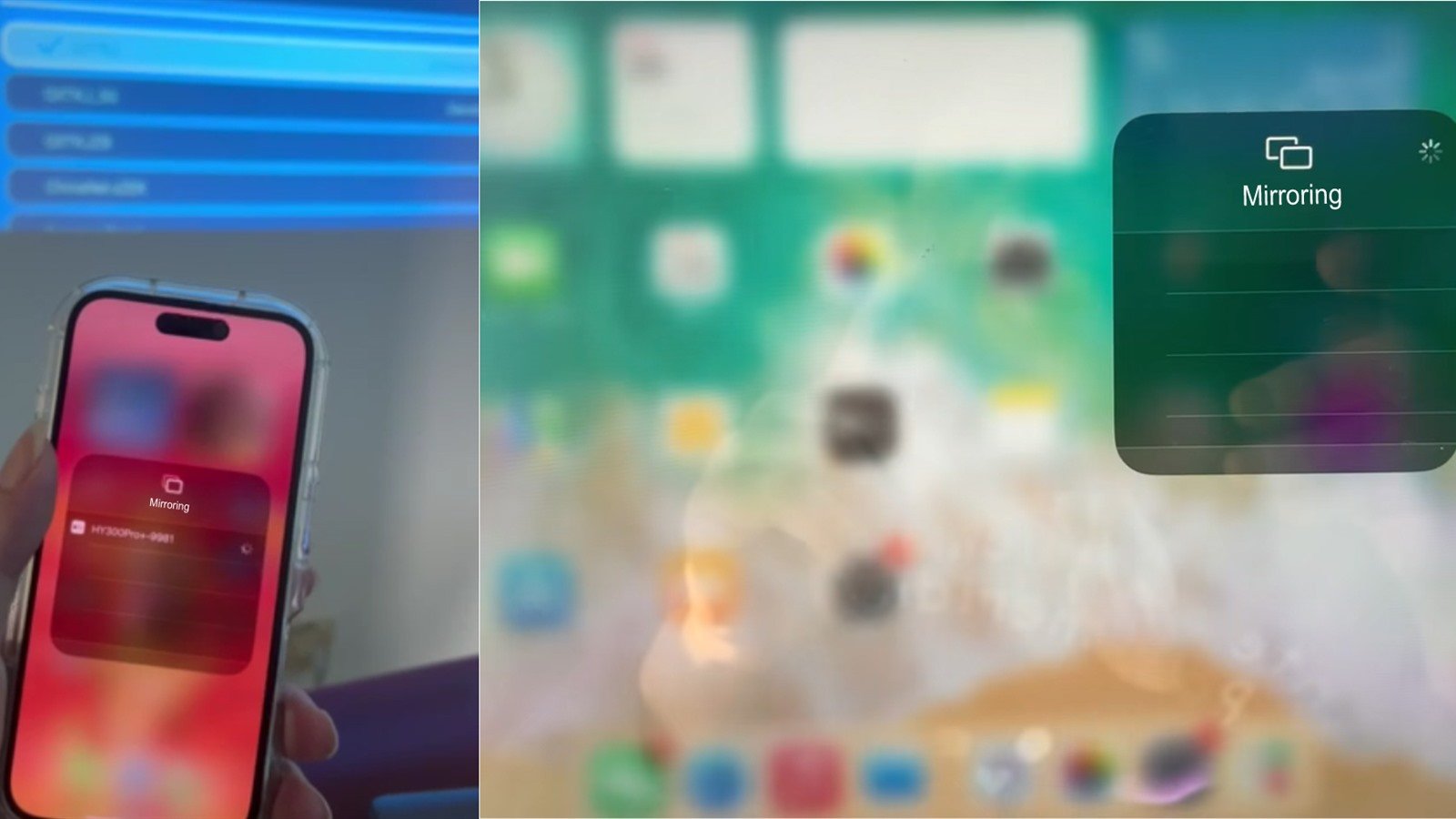
Example: the iPhone shows HY300Pro+ as connected, while the projected image remains frozen or incomplete.
The Official HY300Pro+ Firmware Fix
The fix is installed directly from a USB flash drive using the projector's local upgrade menu. No computer connection, app installation, or cloud update is required. Once the update is complete and the projector restarts, AirPlay screen mirroring should return to normal.
Download HY300Pro+ Firmware Update
For HY300Pro+ only. Do not install this firmware on any other models !
Download Link=> https://mega.nz/folder/BSlBlZwI#XZ_AUHEX7FEvIlie3K9qUQ
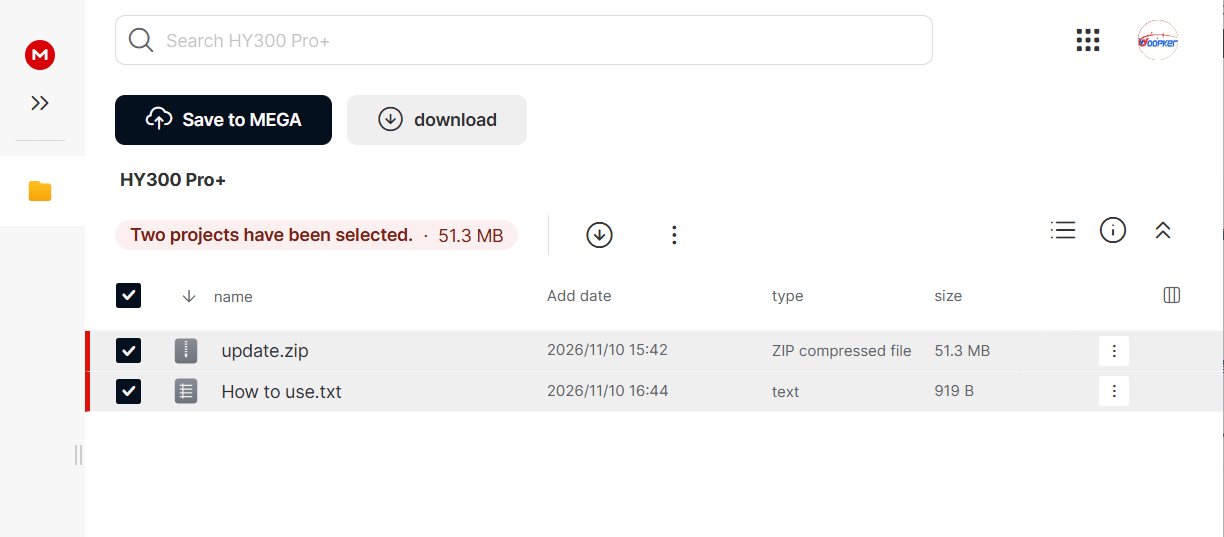
Upgrade Steps:
- Download the compressed firmware file and move it directly into the root directory of a USB flash drive. Do not extract the file. Rename the compressed file to update.
- Power on the HY300Pro+ projector, then insert the USB flash drive.
- Open Home → Settings → System Information.
- On the About Device page, scroll down and select Local Upgrade.
- Select USB, then choose the compressed file named update.
- Wait while the progress moves from 0% to 100%. The process becomes slower at 99%; please wait patiently and do not power off the projector.
- When the upgrade finishes, restart the HY300Pro+ projector. Reconnect your iPhone and test AirPlay screen mirroring again.
After the Update
Restart both the projector and the iPhone before testing. Keep the phone and projector on the same local network, then open Control Center and select Screen Mirroring. On an updated HY300Pro+, the projector should now appear as a usable second screen instead of showing only a static image or remaining black.
If you are unsure whether your unit is a HY300Pro+, or if the update does not restore screen mirroring, contact WOOPKER Support with your product model, purchase platform, and order reference. Please do not install firmware intended for another model.
Frequently Asked Questions
Why does AirPlay connect but show no picture on HY300Pro+?
Some affected units can accept the AirPlay connection while failing to render the incoming video stream after an iOS update. The HY300Pro+ local firmware update replaces the affected screen mirroring behavior and restores the projected image.
Can I update HY300Pro+ without a computer?
Yes. The official fix uses a USB flash drive and the Local Upgrade menu on the projector. The downloaded compressed file must remain compressed and be renamed to update.
Why does the firmware update stay at 99%?
The final stage can take longer than the earlier progress steps. Keep the projector powered on and wait until the update reaches 100% and restarts.
Author: Karl Ji
SHARE WITH A FRIEND

0 comment
Be the first to comment